Samsung DeX on Fedora, the scrcpy way
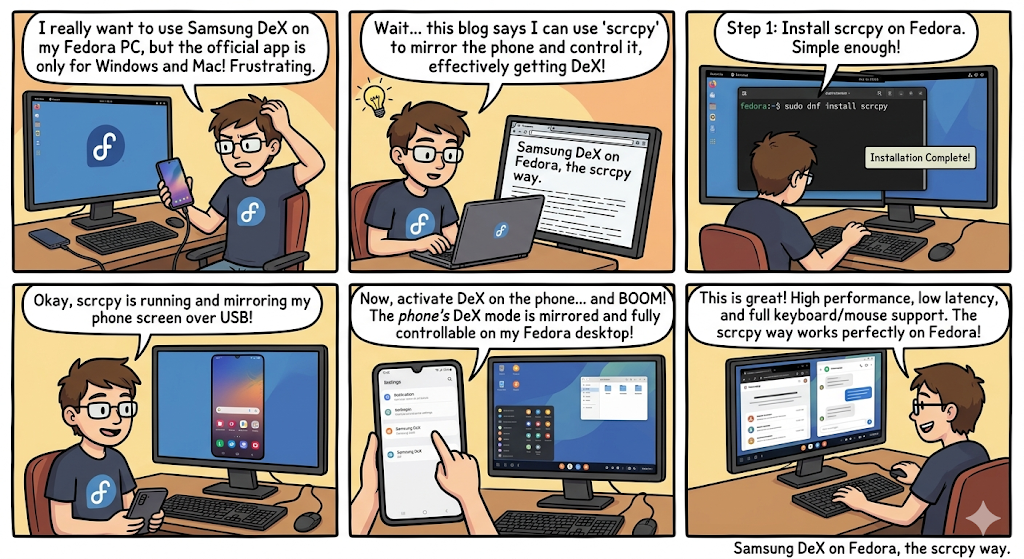
I wanted my Galaxy phone to behave like a small external workstation on my Zenbook running Fedora. Not just a phone mirror, but a proper windowed desktop I could drop alongside my terminal and browser, with audio passthrough and a decent resolution. I spent an evening going down the Miracast receiver path first, building MiracleCast from source and fighting NetworkManager for control of the radio, before giving up on the segfaulting daemon and switching approaches entirely. That's how I ended up on scrcpy.
What scrcpy gives you
scrcpy is a Genymobile project that streams an Android device to a desktop window over ADB. Originally it mirrored the physical screen. More recently it picked up a --new-display flag that creates a virtual secondary display inside Android and streams that instead, which combined with the desktop mode settings Samsung ships in One UI 8 produces a real windowed DeX experience. No Miracast, no Wi-Fi Direct, no vendor certification issues. Just ADB, a virtual display, and a video stream.
The base install is two packages.
sudo dnf install -y scrcpy android-tools
Enabling USB debugging on One UI 8.5
Before scrcpy can do anything the phone needs developer options enabled. The path is Settings, About phone, Software information, then tap Build number seven times. Back out to Settings, Developer options, and flip USB debugging on.
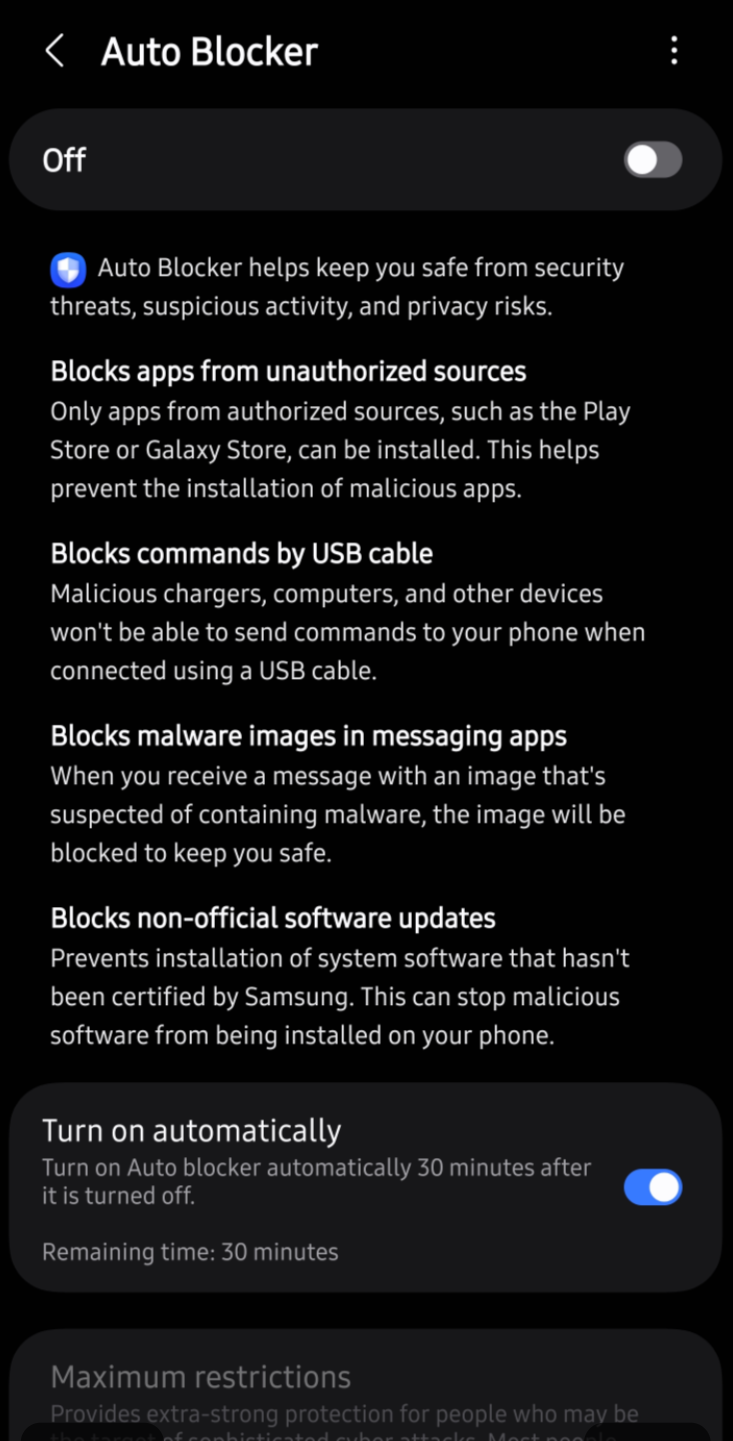
One UI 8.5 added a new obstacle here called AutoBlocker. It's a security layer that blocks "unauthorized software and commands," and on my phone it silently refused the first few USB debugging authorization prompts. The RSA key dialog from the laptop would show up, I would tap Allow, and nothing would happen. The laptop kept reporting the device as unauthorized.
The fix is to temporarily turn AutoBlocker off while you authorize the laptop. Settings, Security and privacy, More security settings, Auto Blocker, toggle it off. Plug the cable in, accept the RSA key prompt, then turn AutoBlocker back on. The authorization persists. You only need to do this once per host machine. Its a good idea to turn AutoBlocker back on after you're done, after all its a security feature.
With USB debugging live, the three global settings that put the virtual display into desktop mode can be applied in one go.
adb shell settings put global enable_freeform_support 1
adb shell settings put global force_desktop_mode_on_external_displays 1
adb shell settings put global enable_non_resizable_multi_window 1
These take effect without a reboot.
Wireless debugging
Wireless is the real unlock. Once I moved to it over my UniFi U7 Pro XG on 6 GHz I stopped plugging the cable in entirely, and honestly the experience at 1440p and 284 DPI is indistinguishable from a wired connection. Wi-Fi 7 with a clean 6 GHz channel handles the stream without visible compression artifacts or input lag.
One UI 8.5 uses Android's newer wireless debugging mode, which lives under Settings, Developer options, Wireless debugging. The important quirk to know up front is that the port is assigned dynamically every time you toggle wireless debugging on. One session it might be 39669, the next 39876, then something else. There is no fixed 5555 like in the old adb tcpip days. You have to read the current port from the Wireless debugging screen on the phone and pass it to adb.
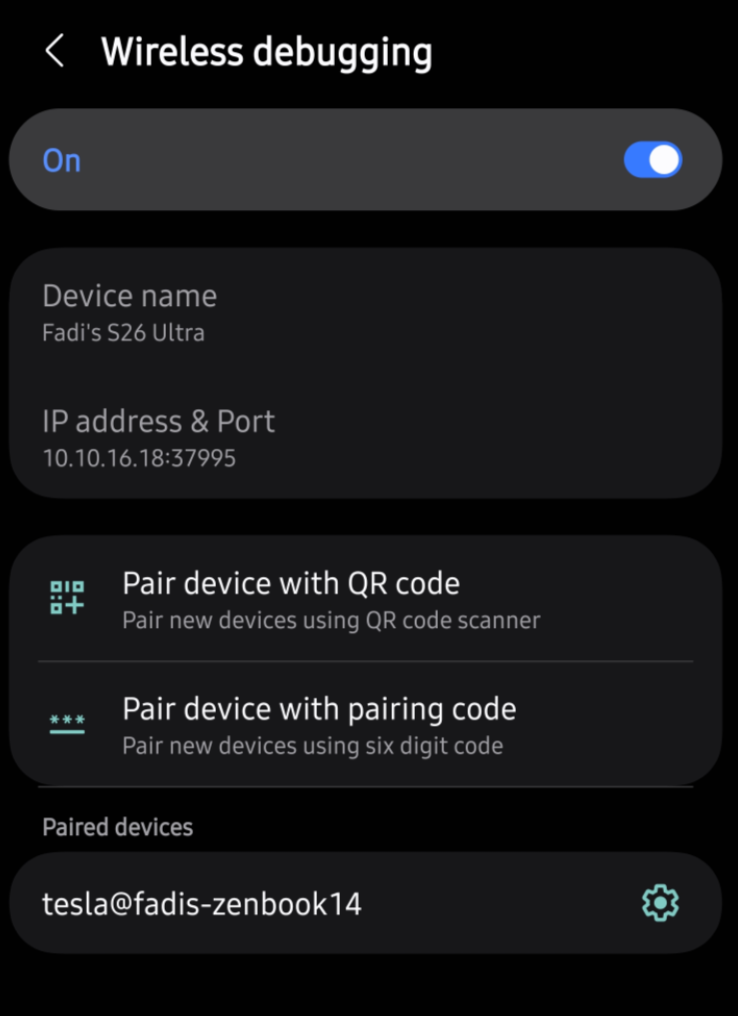
Pairing is a one time step. On the phone, Developer options, Wireless debugging, Pair device with pairing code. It shows a six digit code plus a temporary IP and port. On the laptop:
adb pair <phone-ip>:<pair-port>
# enter the six digit code
After pairing, the main Wireless debugging screen shows a different IP and port that's used for the actual connection:
adb connect <phone-ip>:<current-port>
Because the port changes each time, I built the script around either a manual entry path or an nmap scan of the local subnet that handshakes with anything responsive to find the phone automatically. Once connected, you can put the cable away.
The overlay display workaround
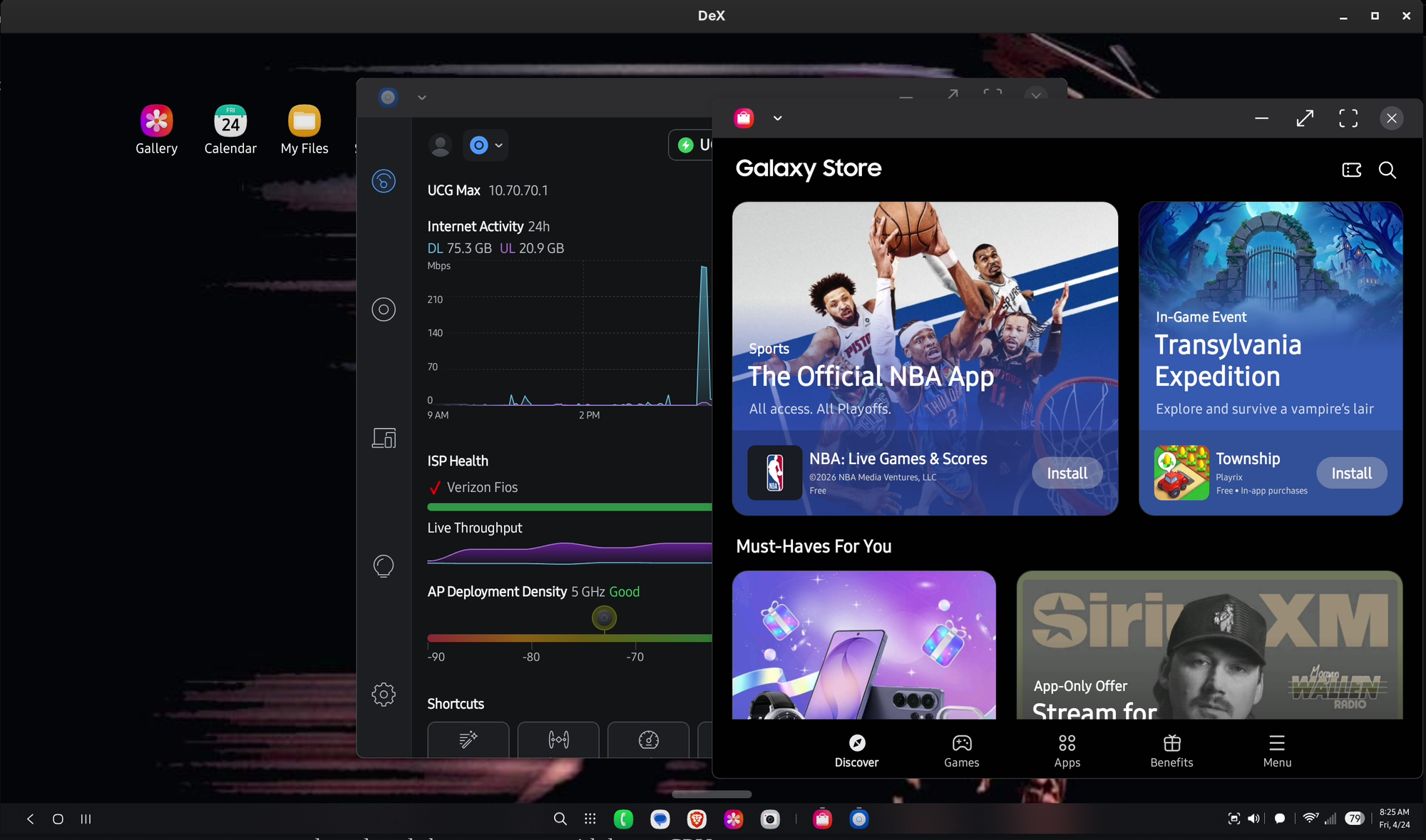
On One UI 8.x, --new-display works as advertised. On 8.5 the flag still creates a virtual display and scrcpy still streams it, but Samsung's window manager stops honoring freeform behavior on that specific display type. Windows won't drag, resizing fails, and the app switcher comes up empty. Launching apps still works, they just run fullscreen with no escape hatch.
The workaround is to create the virtual display yourself through Android's older overlay mechanism, which Samsung still treats as a proper secondary display, then tell scrcpy to connect to it by ID instead of creating its own.
adb shell settings put global overlay_display_devices "2560x1440/180"
scrcpy --list-displays
The last Display N: entry in the output is your new overlay. Point scrcpy at it with --display-id=N and windows drag, resize, and switch correctly.
Flag tuning
I spent more time than I want to admit iterating on scrcpy flags. The lesson I landed on is that scrcpy picks better encoder paths when you hand it fewer arguments, not more. My first attempts specified codec, bitrate, DPI, audio format, keyboard mode, and mouse mode explicitly. Text was noticeably soft at 2560x1440. Stripping everything I didn't actually need produced sharper output with lower CPU.
Two flags genuinely matter for my workflow. --keyboard=uhid tells Android a hardware keyboard is attached, which stops the soft keyboard from popping up on every text field. For mouse I stayed on the default --mouse=sdk. In that mode my laptop's touchscreen works naturally inside the DeX window, and the host cursor has zero latency because it's drawn by my window manager rather than streamed back from the phone. The tradeoff is that some freeform window drags don't commit cleanly, but snap to edge and maximize gestures cover most of what I actually do.
My working command looks like this:
scrcpy --display-id=$ID \
  --keyboard=uhid \
  --video-codec=h264 \
  --video-bit-rate=25M \
  --window-title=DeX
The management script
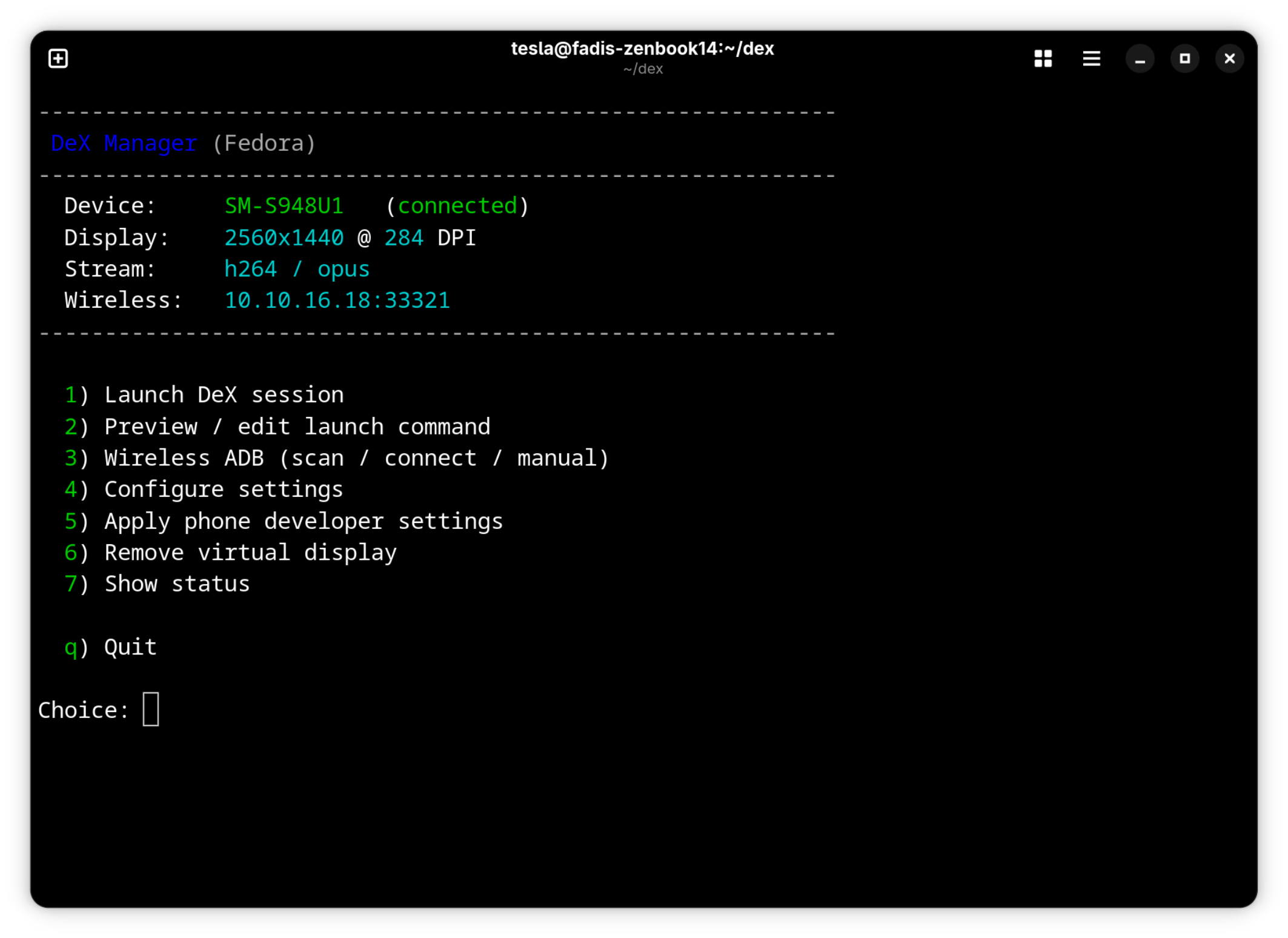
After typing the same sequence enough times I turned it into a small tool called dex-manager. It lives in ~/.local/bin, reads a config file at ~/.config/dex-manager/config, and presents a menu.
1) Launch DeX session
2) Preview / edit launch command
3) Wireless ADB (scan / connect / manual)
4) Configure settings
5) Apply phone developer settings
6) Remove virtual display
7) Show status
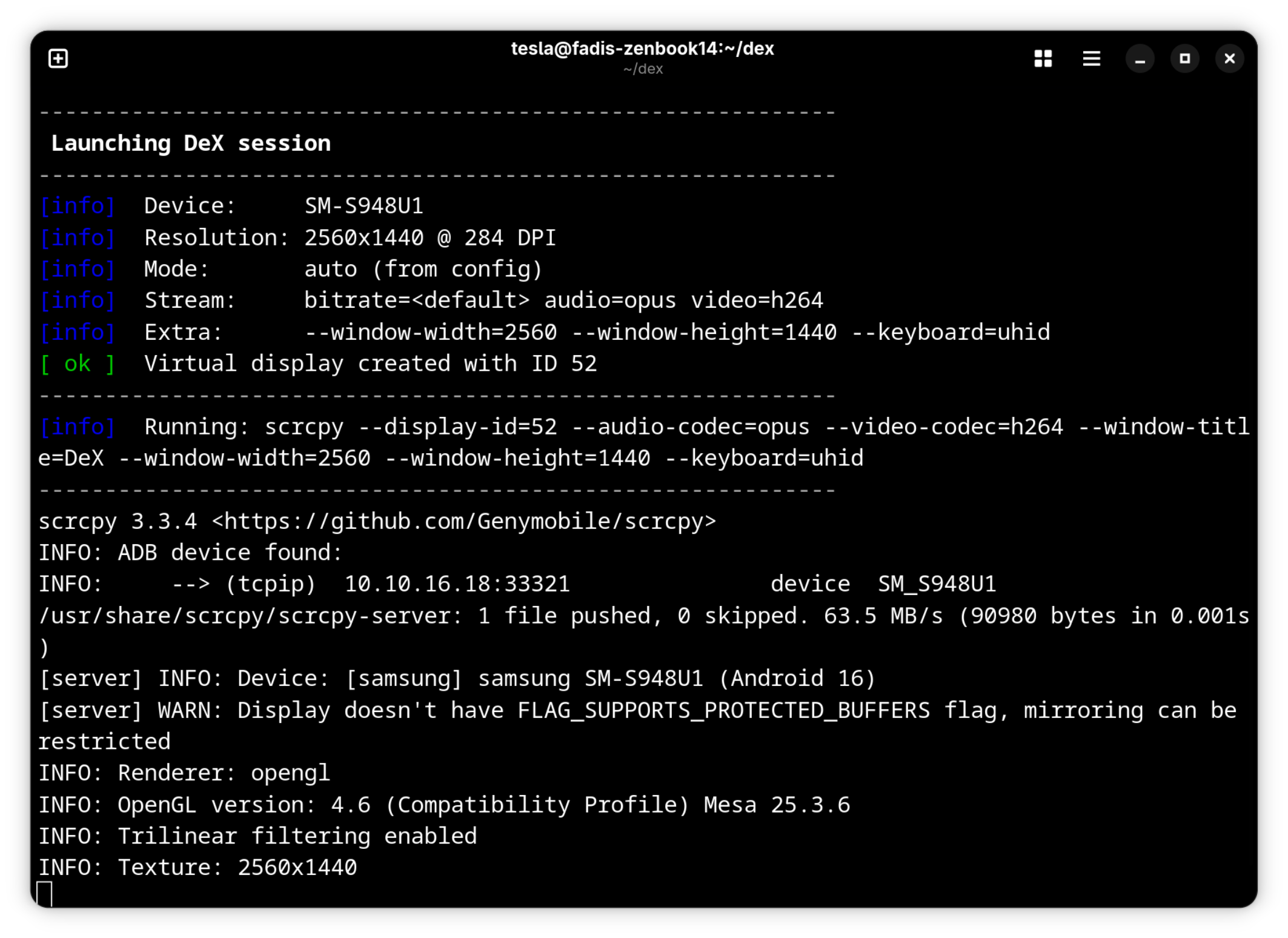
The launch action handles the full overlay lifecycle. It clears any stale overlay_display_devices setting, creates a new one at the configured resolution and DPI, parses dumpsys to find the ID Android assigned, runs scrcpy with the configured flags, and removes the overlay on exit. Ctrl+C and kill signals clean up too, so you never end up with a phantom display floating on the phone.
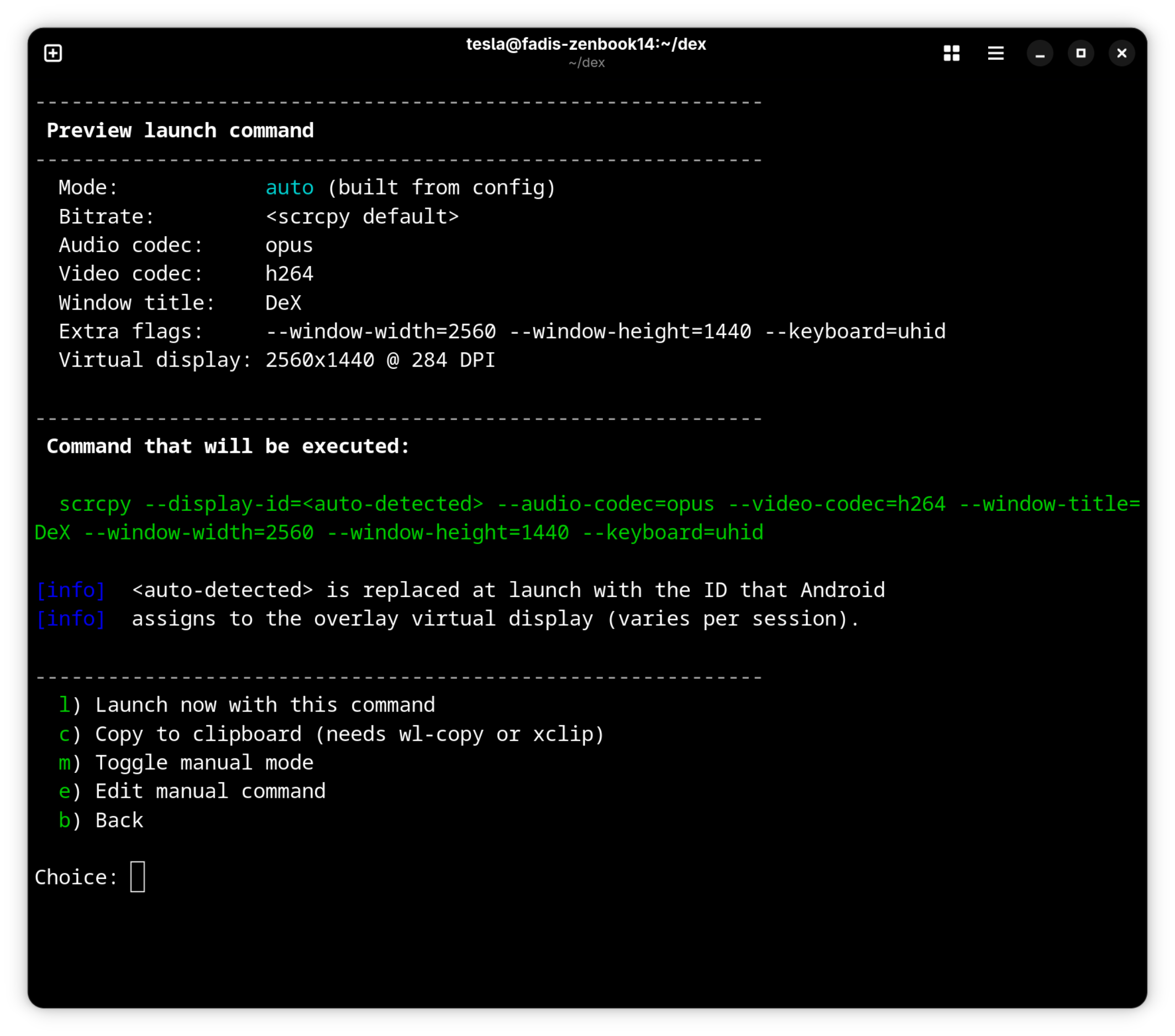
The preview option shows the exact scrcpy command that would run, lets you copy it to clipboard, or toggles into manual mode where you write the full argument string yourself. That became invaluable while I was hunting for the flag combination that produced the best quality, since swapping the entire command is faster than editing six separate config fields.
Direct action mode bypasses the menu for shortcuts and scripting.
dex-manager launch
dex-manager wireless
dex-manager preview
Closing thoughts
scrcpy quietly became one of my favorite pieces of open source software this year. It's a C project with tight dependencies, no telemetry, no account, no cloud round trip, no licensing tier. You clone it or install it from your package manager and it just works. Genymobile maintains it at a pace that keeps up with Android's changes, which is no small feat given how fast both Android and the Samsung fork move. The fact that a Linux user in 2026 can take a flagship Android phone and turn it into a first class desktop window over a wireless connection, with audio, keyboard, and touchscreen, using a single binary and a few ADB commands, is genuinely remarkable.
What makes it even better is how hackable it is. Every decision the tool makes is surfaced as a flag you can override. Want a different codec? Flag. Different bitrate? Flag. Different window behavior, different input injection method, different display target, different FPS cap? All flags. That's why wrapping it in a script feels natural. scrcpy doesn't try to be a platform or a product, it's a well behaved Unix tool that composes with whatever you put around it.
If you have a Samsung phone and a Linux machine sitting on the same network, try it. The barrier to entry is a dnf install and ten minutes of phone toggles, and the payoff is a second screen you already own following you everywhere.
Links and Downloads
Script download is available on my GitHub page - https://github.com/fqazzazee/dex-manager-linux