Windows Hello Face Unlock on Fedora — Yes, It Works
If you've ever switched from Windows to Linux on a laptop with an IR camera and missed the instant face unlock, good news: you can have it back. The same Windows Hello infrared sensor that lets you glance at your screen to log in on Windows works just as well on Fedora with GNOME. You just need the right software to talk to it.
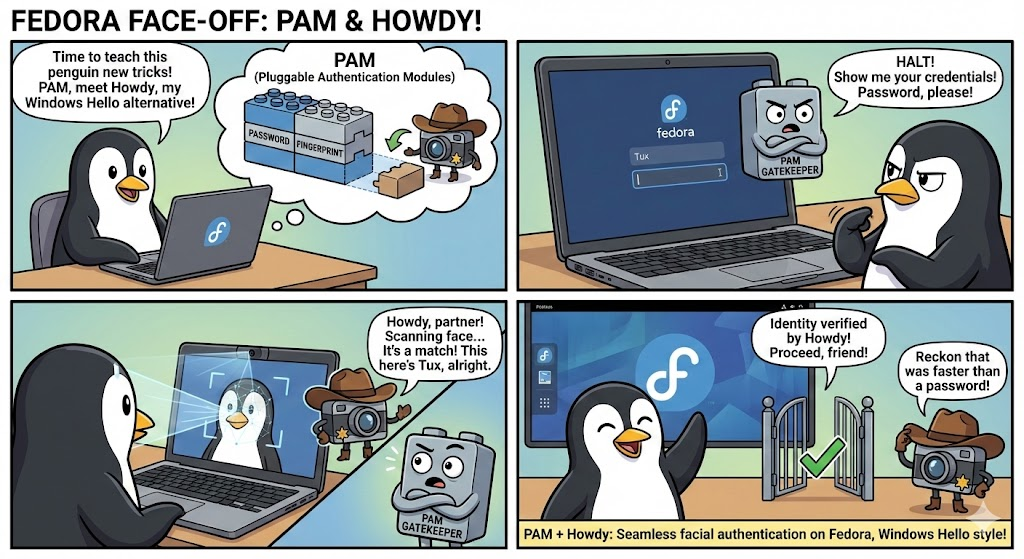
I got this working on my ASUS Zenbook running Fedora Workstation 43 with GNOME 49, and it's been seamless. Lock screen, sudo in the terminal, GUI password dialogs — all of them recognize my face and let me through. When it can't see me or I'm not at my desk, it quietly falls back to a regular password prompt. No drama.
This post walks through how it works under the hood, what the installer script does, and gives a quick primer on PAM — the system that makes it all possible.
The Hardware Side
Most modern laptops marketed with Windows Hello support have two cameras sharing the same USB device: a regular RGB webcam for video calls, and a dedicated infrared camera for face recognition. The IR camera has its own illuminators (those faint red/purple dots near the lens) that flood your face with infrared light, making recognition work regardless of ambient lighting — in a dark room, in bright sunlight, wherever.

On Linux, both cameras show up as separate /dev/video* devices. The tricky part is figuring out which one is the IR sensor, since they often report the same name. The key difference is in their pixel formats: RGB webcams output color formats like MJPEG and YUYV, while IR cameras output grayscale formats like GREY or raw Bayer patterns. The installer script uses this to automatically identify the right device.
Howdy: The Bridge Between Your Face and Linux Authentication
Howdy is an open-source project that provides Windows Hello-style face authentication for Linux. It uses dlib's face recognition neural networks to build and compare face models, and it integrates with Linux's authentication system through a native PAM module.
Building howdy from source on Fedora produces pam_howdy.so — a compiled C++ module that plugs directly into the authentication stack. When any service asks for a password, this module can intercept the request, fire up the IR camera, try to match what it sees against your registered face models, and either grant access or step aside and let the normal password prompt take over.
A Quick Primer on PAM
PAM — Pluggable Authentication Modules — is the framework that handles authentication on virtually every Linux system. Every time something asks "who are you?" on Linux, PAM is involved. It's worth understanding the basics because it's what makes howdy work, and it's also what you'd need to touch if something goes wrong.
How PAM Thinks About Authentication
When you type your password at a login screen, sudo prompt, or lock screen, the application doesn't verify your password itself. Instead, it asks PAM to do it. PAM consults a configuration file for that specific service (stored in /etc/pam.d/) and runs through a list of modules in order.
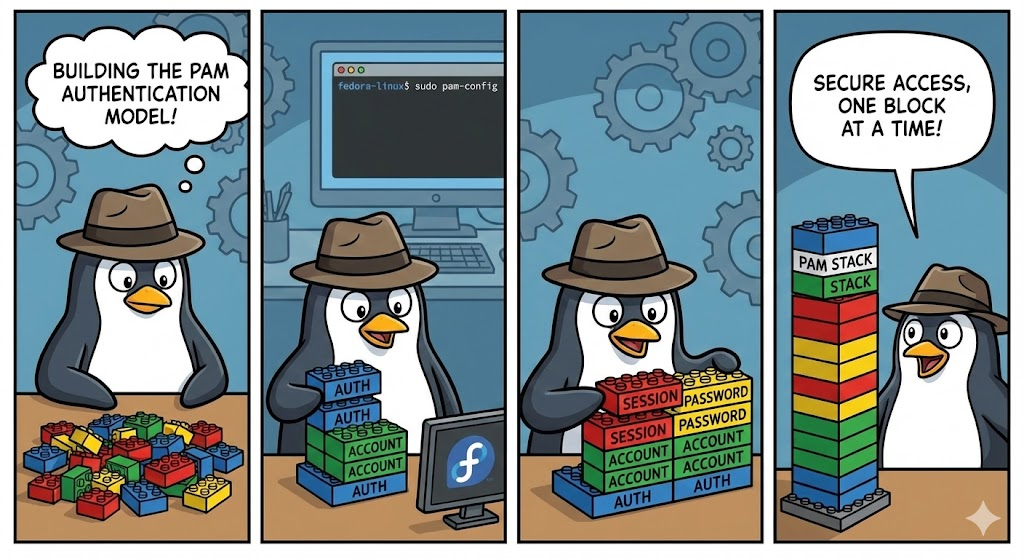
Each line in a PAM config file has three key parts: a type (what kind of check — auth for identity verification), a control flag (what to do if this module succeeds or fails), and the module itself.
Here's what Fedora's /etc/pam.d/sudo looks like after howdy is configured:
auth        sufficient    pam_howdy.so
auth        include       system-auth
account     include       system-auth
password    include       system-auth
session     ...
The first line is howdy. The word sufficient is the control flag, and it means: "If this module succeeds, stop here — the user is authenticated. If it fails, carry on to the next line as if nothing happened."
That single word is what gives you the seamless experience. Face recognized? You're in. Camera can't see you? Fall through to the password prompt in system-auth. No special error handling, no degraded mode — just the next module in the stack.
The Services That Matter
PAM has a separate config file for each service. For face unlock on a GNOME desktop, the relevant ones are:
/etc/pam.d/gdm-password— the GNOME lock screen and login. This is what checks your identity when you wake your laptop or switch users./etc/pam.d/sudo— terminal privilege escalation. Everysudocommand goes through here./etc/pam.d/su— user switching./etc/pam.d/polkit— GUI password dialogs, like when Software Center asks permission to install a package.
The installer adds one line to the top of each file. That's it. No other system files are modified.
What the Installer Script Does
I wrote a bash installer that automates the entire setup and handles the various gotchas that come up on Fedora. Running it presents an interactive menu:
1)  Full install        Build & configure howdy from source
2)  Diagnose            Check installation health (8-point check)
3)  Auto-fix            Fix common issues (dlib, SELinux, PAM, GDM)
4)  Check PAM           Inspect PAM configuration files
5)  Detect IR camera    Scan for Windows Hello IR sensor
6)  Add face model      Register your face
7)  Test                Test face recognition
8)  Uninstall           Remove howdy completely
Option 1 (Full install) runs through everything in order: installs build dependencies, detects the IR camera by scanning pixel formats, compiles howdy from source with its native PAM module, downloads the dlib face recognition neural network models, configures PAM files, and handles the Fedora-specific issues described below.
Option 2 (Diagnose) runs an 8-point health check covering the howdy binary, PAM module, dlib imports, camera accessibility, GDM permissions, SELinux policy, face recognition model data, and registered face models. Useful when something stops working after an update.
Option 3 (Auto-fix) repairs the most common failure modes automatically — broken Python symlinks, missing SELinux policies, PAM misconfiguration, and GDM group membership.
Fedora-Specific Gotchas the Script Handles
Getting howdy working on Fedora isn't a single-command affair. There are several platform-specific issues that the script deals with automatically:
dlib lives in the wrong place. Fedora doesn't ship a working python3-dlib RPM, so dlib gets installed via pip into /usr/local/lib64/.... But PAM modules run in a restricted environment that looks for Python packages in /usr/lib64/.... The script creates symlinks for both the Python package and its compiled C++ binding so that dlib is reachable from anywhere on the system.
GDM can't access the camera. The GNOME Display Manager runs as the gdm user, which isn't in the video group by default. Without group membership, GDM can't open the camera device at all — the IR LEDs never even light up. The script adds gdm to the video group.
SELinux blocks camera access. Fedora enforces SELinux, and its default policy doesn't allow the display manager (xdm_t context) to memory-map video device files. The script generates and installs a targeted SELinux policy module that permits exactly the access howdy needs — nothing more.
The COPR package is broken. There's a community-maintained howdy package in Fedora's COPR repository, but it depends on pam_python.so which requires Python 2.7 — long gone from modern Fedora. Building from source produces a native C++ PAM module with no Python 2 dependency.
Security Perspective
Face recognition via IR is more resistant to spoofing than a regular webcam (you can't fool it with a photo on a phone screen), but it's not as secure as a strong password or a hardware security key. Think of it as a convenience layer — the biometric equivalent of a short PIN. Your password remains as a fallback and is never weakened by adding howdy.
The sufficient PAM keyword means howdy can grant access on its own — if your face matches, no password is needed. If that tradeoff doesn't work for your threat model, you could change it to required and use face recognition as an additional factor alongside your password, though that's a more involved configuration.
The Result
After setup, the experience is exactly what you'd expect from Windows Hello. Wake the laptop, glance at the screen, you're in. Run sudo dnf install something — authenticated before your fingers reach the keyboard. It's one of those small quality-of-life things that makes the daily workflow just a little smoother.
The full setup manual and installer script are attached below. The manual covers first-time setup, face model management, configuration tuning, troubleshooting, and every command you might need. The script handles fresh installs, diagnostics, and repairs — the idea is that you shouldn't need to manually edit PAM files or chase down SELinux denials yourself.
Setup and Usage Manual for the script above can be accessed here:
 Fadi Q.