Linux Users, Groups, and Permissions: A Practical Introduction
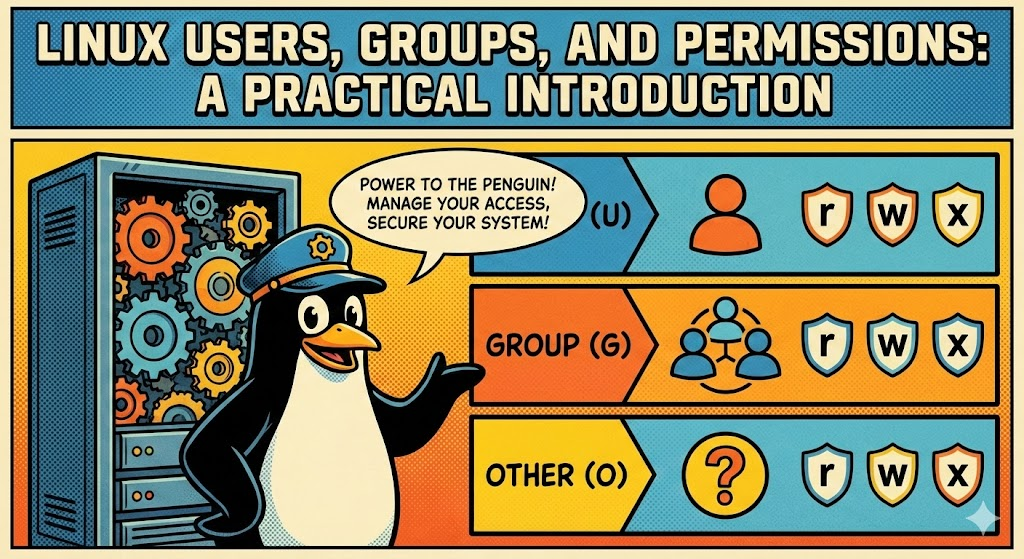
Every file on a Linux system has an owner and a set of permissions that control who can do what with it. If you've ever hit a "Permission denied" error and weren't sure why, this is the article for you. I'm going to walk you through how Linux handles users, groups, and file permissions so you can feel confident navigating and troubleshooting access on any system.
Users and Groups
The first thing to understand is that every person (or service) that interacts with a Linux system does so through a user account. Each user has a username, a numeric user ID (UID), a home directory, and a default shell.
Go ahead and try this in your terminal:
whoami
That gives you your username. Now try id — this one is more useful because it shows your UID, your primary group ID (GID), and every group you belong to.
Now, groups are simply collections of users. They exist so that multiple people can share access to the same files without opening those files up to everyone on the system. When your account is created, you automatically get a primary group with the same name as your username. But you can also belong to additional groups like sudo, adm, or docker, and each one grants you specific privileges.
To see what groups you're in, just run groups. You can also inspect all system users and groups through /etc/passwd and /etc/group if you want to dig deeper.
Creating a User and Granting Sudo Access
At some point you'll need to give someone administrative access to a system. When that happens, I want you to resist the temptation to share the root password or let them log in as root directly. The right approach is to create a standard user first, then add them to the sudo group:
# 1. Create the new user (you'll be prompted to set a password)
sudo adduser jdoe

# 2. Add the user to the sudo group
sudo usermod -aG sudo jdoe

# 3. Verify the group membership
groups jdoe
Pay close attention to the -aG flags here. The -a means append, and -G specifies the supplementary group. If you forget the -a, you won't just add a group — you'll replace all of the user's existing supplementary groups with the one you specified. I've seen this silently break things in production, so make it a habit to always include both flags together.
Once the user is added, they can run privileged commands by prefixing them with sudo and authenticating with their own password. A few best practices I always recommend: create named accounts per person rather than sharing a generic admin account (this gives you accountability through logs), avoid granting sudo access to service accounts, and never edit /etc/sudoers directly — always use visudo, which validates the syntax before saving and prevents you from accidentally locking yourself out.
How File Permissions Work
Run ls -l on any file and you'll see something like this:
-rw-r--r-- 1 john developers 2048 Jan 15 09:30 report.txt
I know that looks like a lot at first glance, but every field is telling you something specific. Let me break it down for you:
-rw-  r-- r--  1  john  developers  2048  Jan 15 09:30  report.txt
│├──┤├──┤├──┤  │   │       │       │        │            │
│ │   │   │    │   │       │       │        │            └── Filename
│ │   │   │    │   │       │       │        └── Modification date
│ │   │   │    │   │       │       └── Size in bytes
│ │   │   │    │   │       └── Group owner
│ │   │   │    │   └── User owner
│ │   │   │    └── Number of hard links
│ │   │   └── Others permissions  (r = read, w = write, x = execute)
│ │   └── Group permissions       (r = read, w = write, x = execute)
│ └── Owner permissions           (r = read, w = write, x = execute)
└── File type (- = file, d = directory, l = symlink)
Once you see it mapped out like this, it clicks pretty quickly. Each permission position uses r (read = 4), w (write = 2), x (execute = 1), or - (denied). Keep in mind that for directories the meanings shift slightly: read lets you list contents, write lets you add or delete files inside, and execute lets you cd into it.
So looking at our example, -rw-r--r-- tells us the owner can read and write the file, while group members and everyone else can only read it.
Changing Permissions with chmod
When you need to modify permissions, chmod is your tool. It supports two styles, and I want you to get comfortable with both.
Symbolic mode is the more human-readable one. You use u for the owner, g for the group, o for others, and a for all three. Then you add (+), remove (-), or set (=) permissions:
chmod u+x script.sh      # Let the owner execute it
chmod o-r config.yml      # Remove read access for others
Numeric mode is what you'll see most often in documentation and scripts. You assign a value to each permission — read is 4, write is 2, execute is 1 — then add them up for each group and pass three digits. So chmod 755 script.sh gives you rwxr-xr-x, and chmod 600 secret.key gives you rw-------, making the file completely private.
Here are the combinations you'll reach for most often: 755 for scripts and directories (owner has full control, everyone else can read and execute), 644 for regular files (owner can edit, everyone else can read), and 600 for anything sensitive like private keys (owner only).
Changing Ownership with chown
To change who owns a file, you'll use chown. This requires sudo since ownership changes affect system-level access control:
sudo chown alice:developers project.conf
This sets the owner to alice and the group to developers. If you need to apply changes across an entire directory tree, add the -R flag to do it recursively.
Root and Sudo
Here's something important I want you to internalize early: the root user (UID 0) bypasses all permission checks entirely. It can read, modify, and delete anything on the system. That kind of power sounds convenient, but logging in as root for daily work is one of the most common mistakes I see. A single mistyped command can cause irreversible damage, and any malware running under root has full system access.
The right way to handle this is with sudo ("superuser do"). It lets authorized users execute individual commands with root privileges — you authenticate with your own password, the elevated access applies to just that single command, and normal restrictions resume immediately after.
sudo apt update           # Run a package update as root
sudo cat /etc/shadow      # Read a file only root can access
Use sudo when you need it, but treat it with respect. If you find yourself prefixing every command with sudo, take a step back and ask whether you really need root for what you're doing.
Quick Reference
| Numeric | Symbolic | Typical Use |
|---|---|---|
755 |
rwxr-xr-x |
Scripts, directories |
644 |
rw-r--r-- |
Regular files |
600 |
rw------- |
Private keys, secrets |
700 |
rwx------ |
Private directories |
Key Takeaways
Every file in Linux comes down to three questions: who owns it, what group is it in, and what can the owner, group, and others do with it? The chmod, chown, and sudo commands give you full control over these answers. Take the time to practice with them, and you'll be able to resolve the majority of access-related issues you run into in any Linux environment.