FortiGate Best Practices Part 3: Virtual Patching
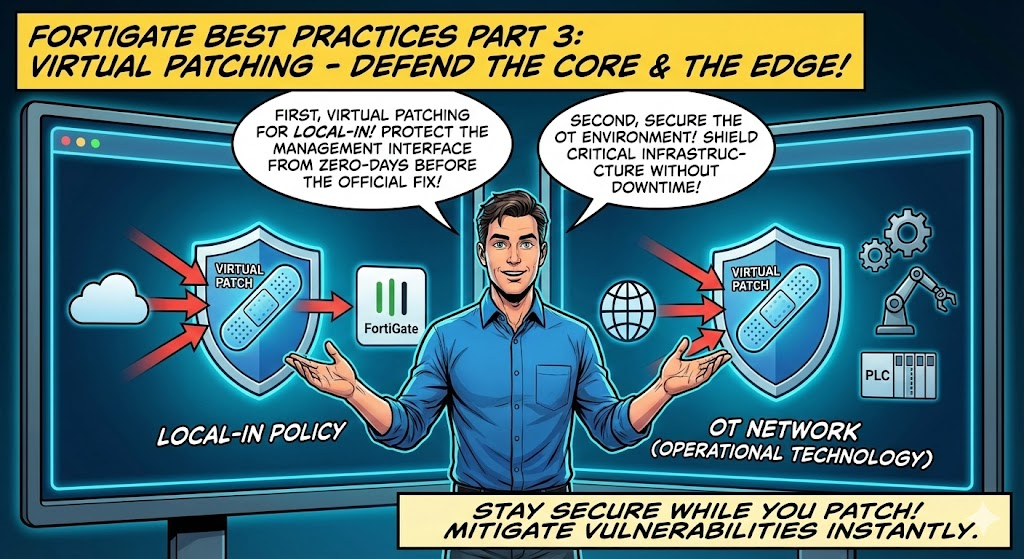
In Part 1 we covered essential firewall objects and threat feeds. In Part 2 we focused on network segmentation. In this part, I want to address virtual patching, a feature built into FortiOS that provides immediate protection against known vulnerabilities without modifying the vulnerable systems themselves.
FortiGate actually provides two distinct virtual patching capabilities that serve different purposes. The first protects the FortiGate itself using the FMWP (Firmware Virtual Patch) database applied through local-in policies. The second protects OT and IoT devices behind the FortiGate using a dedicated Virtual Patching security profile. I recommend enabling both where applicable.
What is Virtual Patching?
Virtual patching uses the FortiGate's IPS engine to detect and block exploit traffic targeting known vulnerabilities at the network level. Rather than patching the vulnerable software directly, the FortiGate inspects traffic inline and drops anything matching a known exploit signature before it reaches the target.
This does not replace actual patching. The vulnerable software still needs to be updated. However, virtual patching provides immediate protection while patches are tested, approved, and deployed through your change management process. It is especially valuable in environments with long patching cycles, legacy systems, or OT/ICS infrastructure that cannot be taken offline.
1. Virtual Patching on the Local-In Management Interface (Protecting the FortiGate Itself)
This feature, introduced in FortiOS 7.2.4, applies the FMWP (Firmware Virtual Patch) database to traffic destined to the FortiGate's own management and VPN services via local-in policies. FortiGuard Labs maintains this database with signatures targeting known FortiOS vulnerabilities, and the FortiGate queries the FortiGuard API server to obtain vulnerability rules specific to its running firmware version.
This is particularly important because the FortiGate's management interfaces and VPN portals are externally exposed attack surfaces. Vulnerabilities like CVE-2022-42475 (SSL-VPN heap buffer overflow), CVE-2022-40684 (authentication bypass), and CVE-2018-13379 (SSL-VPN path traversal) have all been actively exploited in the wild. Virtual patching on the local-in interface provides a defense layer against these types of attacks even if the firmware has not yet been upgraded.
Prerequisites
- A valid FMWR (Firmware) license is required to install the FMWP database
- The extended IPS database should be enabled for broader vulnerability coverage
Verify the FMWP Database
Before configuring, confirm that the FMWP database is present and current:
diagnose autoupdate versions
Look for the FMWP Definitions section in the output. Confirm the version is recent and the contract has not expired.
Enable FMWP Signatures
Check the current status of FMWP signatures and enable them:
diagnose ips vpatch fmwp-status
This will display any currently enabled FMWP signatures. If signatures are not enabled, run:
diagnose ips vpatch fmwp-enable-all
This enables all available virtual patch signatures for your FortiOS version. Once enabled, you can verify with fmwp-status again and you should see the active signatures listed, for example:
Enabled FMWP signatures: 3
10002156  FortiOS.NodeJS.Proxy.Authentication.Bypass.
10002887  FortiOS.SSL-VPN.Heap.Buffer.Overflow.
10002890  FortiOS.HTTPD.Content-Length.Memory.Corruption.
Configure the Local-In Policy
Create a local-in policy with virtual patching enabled on your WAN-facing interface:
config firewall local-in-policy
    edit 1
        set intf "wan1"
        set srcaddr "all"
        set dstaddr "all"
        set action accept
        set service "ALL"
        set schedule "always"
        set virtual-patch enable
    next
end
When virtual-patch is enabled, the IPS engine will scan traffic destined to the FortiGate on the specified interface. The engine identifies and tags services in the session using the port number and protocol, then checks whether vulnerability signatures exist for those services on the running FortiOS version. If a match is found, the traffic is dropped. If a tagged session has no applicable vulnerability signatures, the IPS engine bypasses the session to optimize performance.
Important: Thevirtual-patchoption requires the action to be set toaccept. This is because the IPS engine needs to inspect the traffic inline. The virtual patch signatures handle the blocking of malicious traffic, not the policy action itself.
How It Works Under the Hood
Once virtual patching is enabled, the WAD process periodically queries the FortiGuard API server to obtain a list of vulnerabilities targeting the FortiGate on its specific firmware version. The IPS engine then uses these vulnerability rules to scan local-in traffic. The process is version-aware, meaning it only applies signatures relevant to the vulnerabilities present in your running FortiOS version.
For example, if your FortiOS has an SSL-VPN vulnerability, the IPS engine will drop SSL-VPN traffic matching the exploit signature while allowing web GUI traffic to pass through normally. If your FortiOS has a web GUI vulnerability instead, the opposite occurs. The engine is selective and only scans traffic for services that have known vulnerabilities.
2. OT and IoT Virtual Patching Profile (Protecting Devices Behind the FortiGate)
Introduced in FortiOS 7.4.1, this feature uses a dedicated Virtual Patching security profile to protect OT and IoT devices connected to your network. It works through a multi-step process: the FortiGate detects OT/IoT devices via device detection signatures, queries FortiGuard for device-specific vulnerabilities, and then applies targeted IPS signatures to traffic from and to those devices based on their MAC address.
Prerequisites
- An OT Security Service license is required (virtual patching profiles only apply to OT/IoT devices)
- Device detection must be enabled on the LAN interface where OT/IoT devices are connected
- A firewall policy with utm-status enabled must exist for the LAN interface for device detection to function
Enable Device Detection
config system interface
    edit "lan"
        set device-identification enable
    next
end
In the GUI, navigate to Network > Interfaces, edit the relevant interface, and enable Device detection in the Network section.
Create a Virtual Patching Profile
CLI:
config virtual-patch profile
    edit "OT-Virtual-Patching"
        set severity low medium high critical
        set action block
        set log enable
    next
end
GUI:
- Navigate to Security Profiles > Virtual Patching
- Click Create New
- Set the severity levels and action as needed
- You can exempt specific device MAC addresses or signature IDs if necessary
You can view all available OT virtual patching signatures under Security Profiles > Virtual Patching Signatures.
Apply the Profile to a Firewall Policy
config firewall policy
    edit <policy-id>
        set srcintf "lan"
        set dstintf "wan1"
        set action accept
        set srcaddr "all"
        set dstaddr "all"
        set schedule "always"
        set service "ALL"
        set utm-status enable
        set ssl-ssh-profile "custom-deep-inspection"
        set application-list "default"
        set virtual-patch-profile "OT-Virtual-Patching"
        set nat enable
    next
end
In the GUI, go to Policy & Objects > Firewall Policy, edit or create the relevant policy, and in the Security Profiles section, enable Virtual Patching and select your profile. Also enable Application Control as the FortiGate automatically creates and applies a built-in application list to ensure OT and IoT device categories are active.
How It Works
The FortiGate caches applicable signatures and mitigation rules for each detected device, mapped to the device's MAC address. When traffic enters a firewall policy with the virtual patching profile applied, the IPS engine performs signature matching on a per-device basis using the MAC address. If a device's MAC address appears in the exemption list, patching is skipped. If a specific signature rule is exempted, that particular signature is skipped. Otherwise, all applicable rules for the device are enforced.
Virtual patching profiles can be applied to firewall policies in any direction, protecting traffic both from and to vulnerable devices. They can also be combined with NAC policies, where vulnerable OT devices are first assigned to a protected VLAN, and firewall policies associated with that VLAN then apply the virtual patching profile.
Monitoring OT Vulnerabilities
The Dashboard > Assets & Identities > Assets widget displays detected IoT and OT vulnerabilities. Hovering over the Vulnerabilities column shows a tooltip with vulnerability details retrieved from the FortiGuard API server, including the OT Virtual Patching Signature ID mapped to each Vulnerability ID. If the FortiGate does not have a valid OT license, a warning message will appear indicating that OT vulnerabilities will not be detected.
Wrapping Up
Virtual patching on the FortiGate provides two layers of protection that complement each other. The FMWP database on local-in policies protects the FortiGate itself from exploitation, while the OT/IoT virtual patching profile protects vulnerable devices behind it. Both leverage the IPS engine and FortiGuard Labs signature intelligence.
The key takeaways are:
- Enable FMWP virtual patching on local-in policies for all WAN-facing interfaces to protect the FortiGate's management and VPN services
- Use
diagnose ips vpatch fmwp-enable-allto ensure all available firmware virtual patch signatures are active - Deploy OT/IoT virtual patching profiles on firewall policies protecting segments with OT and IoT devices (requires OT Security Service license)
- Verify your FMWP and IPS databases are current with
diagnose autoupdate versions - Virtual patching is a compensating control, not a replacement for patching. Continue to plan and deploy firmware and software updates through your change management process
Combined with the firewall hardening practices from Part 1 and the network segmentation strategies from Part 2, virtual patching adds another essential layer to your defense-in-depth posture.
If you found this post helpful or would like assistance implementing these practices in your environment, feel free to reach out.